Password Safety 101: Strengthen Your First Line of Defense Against Hackers 

The average American has 240 online accounts that require passwords. Most of us go against expert advice and reuse non-complex passwords for many accounts. And although 89% of people say they know this is risky and unsafe behavior, only 12% are using different passwords for every account.
These trends are alarming – Americans lost $10.3 billion to digital crime last year, and Canadians reported $530 million in losses in the same year, according to the Canadian Anti-Fraud Centre.

Cybercriminals can guess our passwords by scouring the internet, steal them from leaked data, scamming us into sharing them willingly or buying them on the dark web. When they do, they use them to steal money or benefits, break into our accounts, impersonate people and target our friends and family. 

Here are three steps you can take to strengthen your first line of defense against hackers trying to steal money and identities:

Step One: Create strong, unique passwords or passphrases for your accounts.

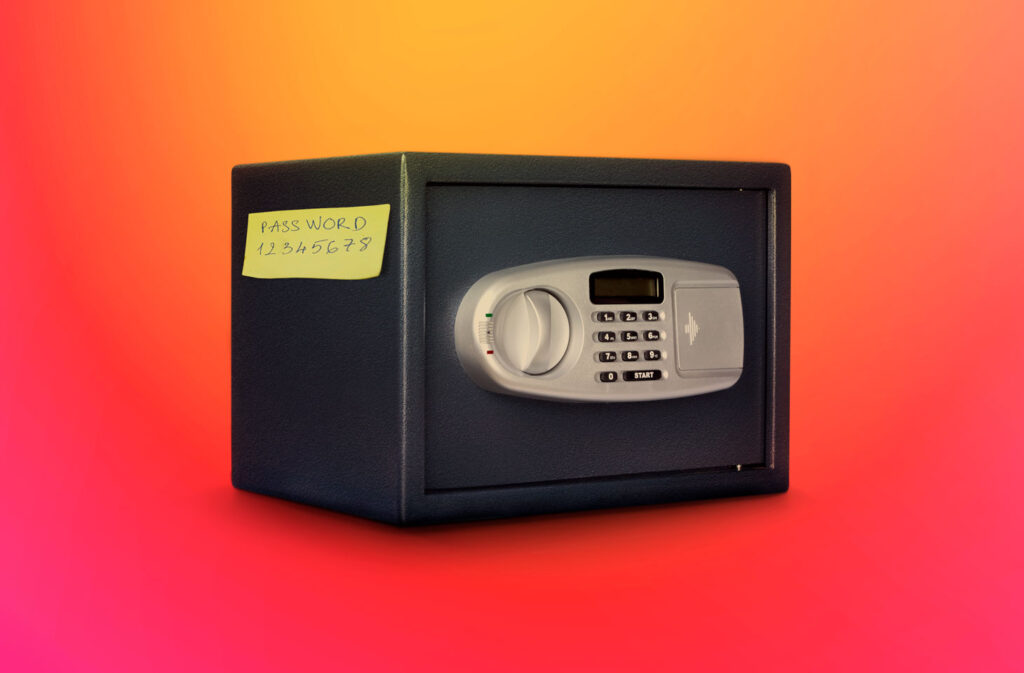
Nearly 23 million breached accounts were found to use the password “123456,” but using easily guessable passwords like this put you at risk of hackers breaking into your accounts. Instead of going easy with “123456” or “pa$$word,” use a mix of symbols, characters, upper case letters, lower case letters and numbers that make your passwords impossible to guess.

Avoid using obvious passwords that contain your date of birth, hometown, address, pet’s names or anything else that could be found online about you. 

Combine random words, create a phrase, use song lyrics, quotes or words in different languages to form a passphrase.

For example: 

  • Start with a common phrase, like “the grass is always greener.” 
  • Change some letters to uppercase. Now, change the phrase to “tHE graSS IS alwaYS GreenER.” Don’t only capitalize the first letter of each word, as that’s too obvious. 
  • Replace some of the letters with similar-looking numbers and add on a few extra characters. For example, this phrase could be changed to “tHE%gr4SS%15%alwaYS%Gr33nER.”

According to cybersecurity researchers, a 10-character password with a mix of uppercase and lowercase letters, numbers and symbols can take five months to crack, while a 12-character combination could take up to 34 years. And with artificial intelligence, some criminals are automating the password-guessing process.

Step Two: Securely store and remember your passwords with a password manager.

53% of people rely solely on memory to manage their passwords. This method is far from foolproof – and can mean forgetting your passwords and getting locked out of accounts. 

Using password managers like Aura, Bitwarden, 1password, LastPass or NordPass is by far the best way to create complex passwords that you won’t forget. These applications store your account credentials in a secure digital vault so that you can access them whenever you need to. Every time you login to your account, a password manager automatically inputs your username and password. That way, you only have to remember one master password for the password manager vault. Just make sure that master password is complex, hard-to-guess, hasn’t been leaked and isn’t being used on for any other logins. 

As an added bonus, Aura’s password manager can warn you if your password has been leaked, is too weak or if you’re trying to enter it on a fake website. 

Step Three: Monitor your accounts and react quickly to data breaches or unauthorized login attempts.

Even the strongest passwords can be leaked if the company that hosts your account suffers from a data breach. This can include login credentials, credit card details and Social Security numbers (SSNs). With hackers targeting companies from Facebook to Marriott to Equifax, there’s a good chance that at least one of your accounts has been compromised.

To protect yourself after a data breach, look out for notifications of data breaches in your email and your Aura app and change any logins impacted. Monitor those accounts closely for any unauthorized login attempts and make sure that you have multi-factor authentication set up as an extra line of defense. 

Check if your data has been exposed in a data breach using Aura’s free tool: https://scan.aura.com/ 


Sign up for identity theft protection for peace of mind that your online safety is taken care of. 

Passwords are just one part of good cyber hygiene, and securing every aspect of your digital life can be overwhelming. But dealing with fraud and identity theft is stressful and can take years to be resolved. 

That’s where Aura comes in. Aura’s all-in-one-place, easy to use app removes the burden off you by providing you with proactive credit, financial account and dark web monitoring, anti-virus software, a password manager and 24/7 support in resolving any fraud or identity theft quickly and effectively.  Access your exclusive Aura offer – a two week free trial and a 25% discount – at aura.com/cyberseniors. 

Aura also offers a family, so if you’re working with your adult children on estate or financial planning, they can join your Aura account and help remove the burden of protecting your digital identity. 
Understanding Common Hacker Tactics & How to Protect Yourself Before It’s Too Late

Cybercrime is growing rapidly each year. In the U.S., $10.3 billion was lost to digital crime in 2022,  nearly double what was lost in 2021. In the same year the Canadian Anti-Fraud Centre received fraud and cybercrime reports totalling a staggering $530 million in victim losses – a nearly 40% increase from the previously unprecedented $380 million in losses in 2021.

In fact, the cost of cybercrime exceeds that of home burglaries in 2022. Given you probably have assets of greater value in digital form — like your savings or investment portfolios — than you do physical assets inside your home. So treat your online security with the same gravity you do at home. Lock your digital doors with strong passwords. Be smart about opening certain web windows. Don’t let strangers peek inside your online life. Here’s how you can protect your family and life’s from the grasp of cybercriminals. 

What puts you at risk? 

Hackers are motivated by money, and they prey on vulnerabilities – like an un-updated device, a lack of awareness or a weak password that’s used on multiple accounts. Unfortunately, many hackers target older adults, assuming that those aged 60+ have a higher net worth, are more trusting and potentially less tech savvy. 

Here a few strategies that hackers use against their victims:

  1. They use viruses or malware that you download or get by clicking a malicious link, which allow them to watch or control your activity.
  2. They impersonate legitimate tech support (like Geek Squad, Microsoft or Apple) to trick you into giving them control of your device.
  3. They take advantage of outdated software, which can cause security vulnerabilities.
  4. They hack your Wi-Fi network to control your other connected devices.
  5. They lure you into clicking dangerous links with believable phishing attacks.
  6. They buy your passwords or Social Security Number on the dark web. 

It’s also important to understand the signs that your device has been hacked, so you can act immediately to remediate the situation.

These are the warning signs that your device has been hacked: 

  1. You get signed out of your online accounts (social media, email, online banking, etc.), or you try to log in and discover your passwords don’t work anymore.
  2. You receive emails or text messages about login attempts, password resets or two-factor authentication (2FA) codes that you didn’t request.
  3. You see logins from mobile devices and locations you don’t recognize in your account activity or sign-in logs.
  4. You notice strange emails in your “Sent” folder.
  5. You start to receive spam emails — especially ones that specifically threaten or try to extort you.
  6. Friends or family members tell you they’ve received strange messages from your email or social media accounts.
  7. You receive a data breach notification from a company or service that you use stating that your personal info was leaked.
  8. You suddenly receive pop-ups that claim your device is infected with a virus.
  9. Your devices slow down, heat up or start to crash more often.
  10. You notice browser plugins, add-ons or toolbars that you didn’t install.
  11. You get redirected to unwanted websites, or they open automatically behind your browser window.
  12. Your cursor starts moving by itself — when you haven’t touched the mouse or trackpad.
  13. There are suspicious charges on your credit card or bank statements.
  14. You get a ransomware pop-up on your computer saying your data is encrypted and you need to pay a ransom.
  15. Your web camera light is on, even when you’re not using it for video calls or recordings.
  16. Your antivirus software is disabled without your permission or action. 
  17. You have to keep closing or quitting apps or sites that open on their own.

What to do in the event of a hack:

Hackers can strike at any time. If you notice any of the below signs, mitigate danger by acting quickly. 

  1. Disconnect from your Wi-Fi network. Many hacking strategies require an Internet connection in order to succeed. The sooner you cut off that access point, the better. To do this, select the Wi-Fi icon in the upper right corner of your computer screen and click the toggle to turn it off, or go to the device’s settings menu. 
  2. Use antivirus software to scan for malware. If hackers gained access to your computer, they most likely installed malware. Antivirus software can help you to isolate and delete any lingering viruses. If you have a PC, you can run an advanced scan offline using Windows’ built-in security software. For Mac users, contact Apple Support online, or call 1-800-275-2273. Aura’s antivirus software can also help.
  3. Delete any suspicious applications. Computer hackers often use unauthorized applications to give them remote control of your computer or to install viruses or malware. To counteract this, it’s important to know how to view all of your computer’s applications.
    • On a Mac: open the Finder application, then click on “Applications” on the left sidebar of the window. 
    • On a PC: select “Start” and then click “All apps.” 
    • Scroll through all of your apps and delete any that you don’t recognize.
      • Look for apps that give hackers remote access — such as Remote Desktop, TeamViewer, AnyDesk and RemotePC.
    • Go through recent downloads in your “Downloads” folder to make sure you didn’t miss anything.
  4. Update all of your apps and operating systems. Once you’ve removed any potentially harmful apps, it’s time to update everything else — including your computer’s operating system. This helps remove any security vulnerabilities that hackers can use to regain access to your computer.
    • You can update any Microsoft or Apple apps by going into the app store and selecting “Updates” in the sidebar menu.
    • Update apps that you downloaded elsewhere by opening them individually and going to their settings to install updates from there. 
    • Finally, go into your computer’s general settings from your desktop and initiate a software update (if one is available).
      • This can be as simple as typing “update” into your computer’s desktop search bar and clicking on the “Software Update” option that pops up.
  5. Reset all of your passwords and set up two-factor authentication (2FA) Password security is a huge part of your computer’s security overall. Make sure you update all of your passwords and use additional security measures such as two-factor-authentication (2FA). Consider downloading a reliable password manager, like Aura’s, to keep your passwords safe. 
  6. Wipe your device and initiate a clean install. When an antivirus scan doesn’t feel like enough, consider wiping and restoring your hard drive. Backup all your data onto an external hard drive or a cloud-based storage system. 
  • For Mac users: you can use the Time Machine application that comes with your Apple computer. Restore your system back to the way it was before it got hacked. 
  • For PC users: you can also initiate what’s known as a System Restore Point, which functions the same way as Apple’s Time Machine. It allows users to wipe all installations that occurred after a given point in time (for example, before a hack occurred). 
  • Pro tip: Make sure you’re using a backup from before your computer was hacked. Otherwise, you could accidentally reinstall malware or malicious apps.
  1. Freeze your credit. If your personal information is stolen, your credit and financial accounts are immediately at risk. Hackers can sell your information or use it to open up new lines of credit in your name. Initiate a credit freeze to restrict access to your credit report, by contacting one of the main credit agencies online or by phone.
  2. Check your credit report and financial statements. Once your passwords are changed, check for suspicious activity on your financial accounts. If your computer or phone is infected, sign into your bank and credit card accounts on a different device. 
  3. Warn your friends and family about the hack. Hackers could bait and scam others via your social media and email accounts. Your friends, acquaintances and family members are much more likely to fall for a scam or click on a corrupting link if they think they’re communicating with you. Contact them over the phone so they can be sure you’re you. 
  4. Tighten the security settings on all of your online accounts. Every personal service and account you use has customizable security settings. Go through available security features and choose the ones that will best protect your information.

How to proactively protect yourself? 

Not all hacks can’t be prevented, but you can take some defensive measures to proactively protect yourself. The most important strategy for minimizing your risk is good cyber hygiene – installing antivirus and anti-malware software, learning to recognize the signs of a phishing attack, avoiding clicking on links or downloading files from unsolicited emails or text messages and checking your accounts and credit report regularly for any unusual activity. 

Sign up for identity theft protection for peace of mind that your online safety is taken care of. 

Digesting all of the information above can be overwhelming. Dealing with fraud and identity theft is not only stressful, but it can take years to be resolved. That’s where Aura comes in. Aura’s all-in-one-place, easy to use app removes the burden off you by providing you with proactive credit, financial account and dark web monitoring, anti-virus software, a password manager, and 24/7 support in resolving any fraud or identity theft quickly and effectively.  Access your exclusive Aura offer – a two week free trial and a 25% discount – at aura.com/cyberseniors.

iPhone Tips and Tricks

During this Cyber-Seniors webinar, our teen tech mentors will discuss some useful tips and tricks for iPhone users, such as how to adjust brightness, font size and keyboard placement, how to access Apple Wallet, Apple Health and Siri, how to take screenshots and scan documents, and much more! If you enjoyed this video, please give it a like and subscribe to our channel for more helpful tech sessions!

Recorded on 06/27/2022

Uber: Ride Share App

During this Cyber-Seniors webinar, our teen tech mentors tell us all about Uber, a popular ride sharing app that lets you get picked off and dropped wherever and whenever. If you enjoyed this video, please give it a like and subscribe to our channel for more helpful tech sessions!

Recorded on 05/16/2022

OneDrive: Cloud Storage for Microsoft Accounts

During this Cyber-Seniors webinar, our teen tech mentors will demonstrate how to use the cloud storage platform OneDrive to store, access and share files from any device, anywhere. If you enjoyed this video, please give it a like and subscribe to our channel for more helpful tech sessions! Visit the Cyber-Seniors website to sign up for a webinar or a one-on-one tech session: https://cyberseniorsco.wpengine.com/

Recorded on 01/13/2022